Friday, March 30, 2012

World’s first flexible e-paper display heads into mass production

World’s first flexible e-paper display heads into mass production:

LG on Thursday unveiled the world’s first plastic e-paper display, which the company claims will “revolutionize the E-Book market.” The 6-inch E Ink display features 1,024 x 768-pixel resolution and can bend at an angle of up to 40 degrees. “With the world’s first plastic EPD, LG Display has once again proven its reputation for leadership and innovation with a product we believe will help greatly popularize the E-Book market,” said Mr. Sang Duck Yeo, Head of Operations for LG Display’s Mobile/OLED division. “Based on our success in mass-producing plastic EPD, we are excited as we look toward applying concepts from this experience to future developments like plastic OLED and flexible displays.” The display will be supplied to manufacturing companies in China first, and end-user products could launch in Europe as soon as the beginning of next month. Read on for LG’s press release.
LG Display Begins Mass Production of World’s First Plastic E-Paper Display
With advancements in functionality and design, Plastic EPD to revolutionize E-Book market
Seoul, Korea (March 29, 2012) – LG Display [NYSE: LPL, KRX: 034220], a leading manufacturer of thin-film transistor liquid crystal display, announced today that it has started mass production of the world’s first plastic electronic paper display (EPD) for use in E-Books. The 6″ XGA (1024×768), e-ink, plastic EPD is expected to revolutionize the E-Book market with its advancements in functionality and design.
“With the world’s first plastic EPD, LG Display has once again proven its reputation for leadership and innovation with a product we believe will help greatly popularize the E-Book market,” said Mr. Sang Duck Yeo, Head of Operations for LG Display’s Mobile/OLED division. “Based on our success in mass-producing plastic EPD, we are excited as we look toward applying concepts from this experience to future developments like plastic OLED and flexible displays.”
Innovations in Functionality and Design
The world’s first plastic EPD from LG Display offers users a paper-like reading experience with a plastic substrate that is as slim as cell phone protection film, and a flexible design that allows bending at a range of 40 degrees from the center of the screen. Compared to glass EPD of the same size and resolution, LG Display’s plastic EPD realizes a super slim thickness of 0.7mm which is 1/3 slimmer than existing glass EPD; as well as a weight of 14g which is more than 1/2 lighter.
E-Book users have long expressed a desire for more durable EPD, since around 10% of them have damaged their product screens from accidentally dropping or hitting them. When LG Display’s plastic EPD was put through repeated drop tests, from 1.5m above the ground or the average height of reading when standing, no damage resulted. When put through a break/scratch test involving hitting the display with a small urethane hammer, no scratches or breakage resulted.
As EPD gets thinner, lighter, and more durable with the introduction of plastic EPD, E-Books will be able to offer certain unique benefits compared to smart devices and tablets, including reduced eye fatigue and more efficient electricity consumption in addition to lower prices.
A Manufacturing Breakthrough
LG Display developed a unique technique to utilize the high TFT process, typically employed in general LCD manufacturing and with temperatures exceeding 350 degrees, in the production of its plastic EPD. By overcoming the obstacles associated with applying the existing production process to heat susceptible plastic, LG Display achieved a breakthrough with the successful mass production of plastic EPD able to maintain strong durability in high temperatures.
Availability
The world’s first mass-produced plastic EPD from LG Display will first be supplied to ODM companies in China, followed by completed products to be released in Europe at the beginning of next month.

Monday, March 26, 2012

When smartphone meets muscle car: It’s Project Detroit!

When smartphone meets muscle car: It’s Project Detroit!:
Forget Knight Rider reruns.The Windows Phone used in Project Detroit can tap into real-time feeds from Kinect sensors on the car. If car tech’s your thing, you’ll want to tune into “Inside West Coast Customs” on Discovery’s Velocity network this Sunday at 9 p.m. Eastern for the unveiling of Project Detroit, a rad marriage of cutting-edge apps and auto tech.
The car, a collaboration between Microsoft and award-winning automotive designer Ryan Friedlinghaus of West Coast Customs, melds a 2012 Ford Mustang with a 1967 Mustang fastback body—plus some neon flair thrown in for good measure.
Inside, Project Detroit incorporates several Microsoft technologies—from Kinect to Windows 8. But Windows Phone also gets a star turn.
The vehicle can be located, locked, and started using a Viper SmartStart app for Windows Phone (pre-release, I’m guessing, since it’s not in Marketplace). Windows Phone also doubles as its eyes and ears, thanks to real-time feeds from multiple Kinect cameras and mics studding its body.
But the trick that really made me jealous was this: You can say something into the phone and have it blasted through the car’s external PA speaker system. Just imagine the delicious possibilities next time you get cut off in traffic.
Project Detroit is a collaboration between Microsoft and an award-winning auto designer. The goal is to inspire app and auto makers.

Monday, March 19, 2012

NetZero reinvents itself as America’s first free 4G service provider

NetZero reinvents itself as America’s first free 4G service provider:

NetZero burst onto the scene in 1998 as the first in a crop of Internet service providers that gave subscribers free access to the Web using an advertising-supported model. NetZero’s patented ad technology displayed highly targeted ads to users as they browsed the Internet at dial-up speeds, but it was forced into a freemium model when a number of other ISPs began offering free Web access as well. NetZero continues to offer basic paid dial-up and broadband services, but now the company is going back to its roots in an effort to disrupt the wireless industry as it did to the dial-up industry nearly 14 years ago.
With Clearwire as its network partner, NetZero on Monday unveiled a new contract-free 4G wireless broadband service. At launch, NetZero has two affordable hardware devices available for purchase: a $49.99 NetZero 4G Stick and a $99.99 NetZero 4G Hotspot. Neither device requires a commitment of any kind on the part of the user.
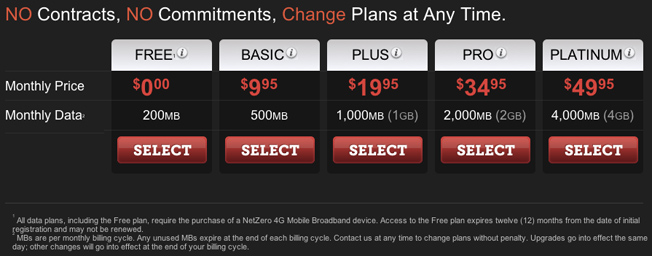
Affordable 4G modems are just the beginning. NetZero will also offer five no-contract service plans at launch that start at free — yes, free — and top out at $49.99 per month.


The free plan obviously comes with some big caveats. First, it only affords 200MB of data each month. On a WiMAX network that afforded average download speeds of between 8Mbps and 9Mbps during my tests, this seems like an incredibly small amount of data. For light travelers who need access to email on the go a few times each month with minimal Web browsing, however, this plan will certainly get the job done. Any use case beyond that will likely require a larger plan.
The other big draw-back is a restriction stipulating that the free plan can only be used for 12 consecutive months. This means two things: if a user activates the free plan and then upgrades to a paid plan after a month or two, he or she cannot switch back to the free plan. Secondly, the light travelers looking for a free high-speed connection described above will only have a year to enjoy free service. The cheapest monthly plan after a year is just $9.95 though, and since there are no contracts to worry about, users can deactivate and reactivate service at any time.
Here’s what we get when we line up NetZero’s plans against 4G broadband plans from the four major U.S. carriers:
NetZero T-Mobile Sprint AT&T Verizon
200MB      FREE
500MB $9.95
1GB $19.95
2GB $34.95 $39.99
3GB $34.99
4GB $49.95
5GB $49.99 $50.00 $50.00
6GB $49.99
10GB $79.99 $80.00
12GB $79.99
Sprint is clearly the best value for heavier users, but there’s an obvious catch. Each plan listed above for Verizon Wireless, AT&T, Sprint and T-Mobile requires the customer to sign a two-year contract. This means at Sprint, the subscriber will spend a minimum of $839.76 for service over the life of a contract on top of the hardware purchase price, even if service is only used for a handful of months over the course of two years. T-Mobile subscribers will pay a minimum of $959.76 over two years, and AT&T and Verizon customers will pay a minimum of $1,200. The only way out, of course, is to pay a lump-sum early termination fee, the cost of which varies between carriers.
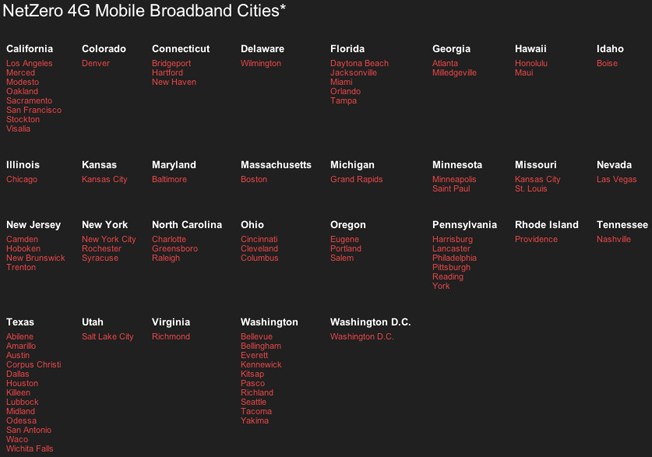
There is another consideration, however, and that is coverage. NetZero’s 4G service utilizes Clearwire’s WiMAX network, which covers 82 cities across the United States and their surrounding areas. That’s it. NetZero’s current hardware only supports WiMAX, so neither currently available device will operate on Clearwire’s upcoming LTE network. The company may release LTE-compatible devices in the future, but for now, coverage will not be expanding.


NetZero’s 4G Hotspot performed extremely well during my tests in and around New York City, with no service interruptions to speak of. Download speeds averaged about 8.3Mbps, which is more than enough to accommodate most users, and upload speeds hovered above 1Mbps.
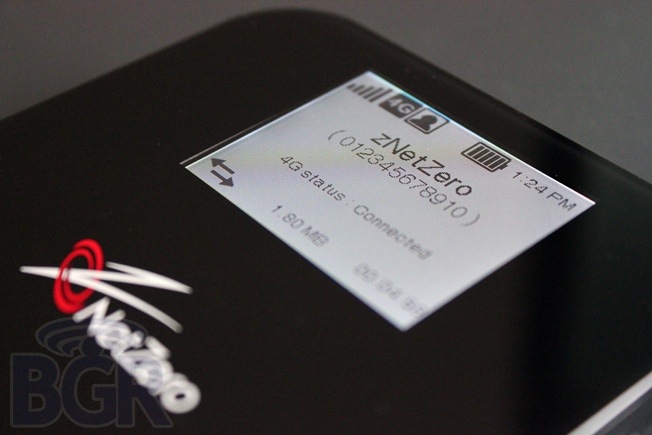
The device itself is very easy to use, and the big, clear LCD display provides key information like signal strength, remaining battery charge and a WEP key. Battery life seemed above average compared to other portable hotspots I’ve used, and I still had two bars left after a few hours of usage in an area with solid WiMAX coverage.
NetZero’s success as a wireless service provider is anything but guaranteed. It offers clear benefits compared to the nation’s top carriers — no contracts, free and inexpensive plan options, low-cost hardware — but coverage will be a big barrier for many potential customers. If a potential subscriber doen’t spend all or at least most of his or her time in and around the 82 cities listed above, NetZero’s service is simply not an option.
NetZero’s 4G devices and service becomes available to consumers at 9:00 a.m. EDT on Monday, and additional details are available on the company’s website.

Friday, March 9, 2012

Rocking the Windows Server “8” Administrative Experience

Rocking the Windows Server “8” Administrative Experience:
Howdy! My name is Jeffrey Snover. I am the Distinguished Engineer for Windows Server where I help drive the architectural direction and technical strategy of the product. It’s possible you know me as the inventor of Windows PowerShell. As we continue to use this blog to introduce and explain the new capabilities in Windows Server “8,” I will be introducing the team members and their posts. I’ll also be writing some of the posts myself. Think of me as your host and guide as we help you explore Windows Server “8” with this blog. We’ll start with something near and dear to my heart: Admins.
Windows Server has always distinguished and prided itself on its Administrative Experience. Our mission for Windows Server “8” was to deliver the best cloud-optimized OS. This required us to reimagine the experience, focusing on scenario-based multi-machine management from a client machine implemented on top of PowerShell and WMI. When you see and use it, I think you’ll agree that it is clean, powerful, intuitive and just plain fun. The architecture ensures that everything you can do from the GUI, can also be automated from the command line. Automation drives up your server-to-admin ratio, increases the quality and repeatability of your IT operations and lets you schedule operations on the weekend while you are enjoying your time off. Ultimately the Administrative Experience is all about making people successful. This blog highlights a few of the many changes we made in Windows Server “8.” Read about them here and then download the beta of Windows Server “8” and the Remote Administration Tools and try them for yourself. I think you are going to have some fun.
Erin Chapple, a Partner Group Program Manager on our Windows Server Manageability team, authored this post.
--Cheers! Jeffrey
__________________________________________________________________________________________________________________________________________________________________
One of Windows Server’s key differentiators has always been our focus on providing an Administrative Experience that leads the industry in enabling administrators to manage their servers. Windows Server “8” takes this to a whole new level with substantial improvements in simplicity, richness and the power it provides to administrators.
Redesigned Server Manager and Integrated Experiences
Two releases ago, we introduced Server Manager. Server Manager provided a cohesive role-centric view of a single server, exposing the common management tasks administrators performed on a daily basis. When we looked at challenges facing our customers, it was clear that Server Manager was a good start, but that with Windows Server “8” we needed to reimagine the experience. And so we took on the task of redesigning Server Manager to deliver the experience needed for a cloud-optimized OS.
Multi-Server
As we move to the cloud, one of the key shifts needed in Server Manager was from the single role-centric view to a multi-sever view of the environment. Server Manager delivers a multi-server experience enabling administrators to add the servers they are responsible for, view information (such as events, services, performance) across their servers and take action. In addition, the Administrative Experience is consistent across servers whether they are physical or virtual. Server Manager accomplishes this by leveraging the multi-machine management capabilities of WMI, Windows PowerShell and Windows PowerShell’s new workflow capabilities. Virtually every operation done using Server Manager can also be done via Windows PowerShell. This allows admins to automate operations thereby saving time, increasing quality and consistency and improving server-to-admin ratios.
Fresh Yet Familiar Experience
With the design movement across Microsoft to Metro style, it was clear we had an opportunity to modernize the Administrative Experience. The battleship grey that server can be identified with needed to be refreshed and brought forward. And yet, we know that any new experience needed to be connected with how administrators get things done today, so as not to disrupt their work patterns. As a result, we looked at the Metro Style Design Principals and centered on three areas of focus for the new Server Manager:
· Glance-able – The administrator can understand through a quick glance the state of their environment and where they need to focus their attention.
clip_image002
The Server Manager dashboard provides a glance-able view of the server environment, drawing attention to the key issues needing attention.
· Actionable – The administrator can take action directly based upon the information presented to them. No need to open another tool, just a simple click resolves the issue.
clip_image004
From the Server Manager dashboard, the user can view the Services that are not stopped and start the service across multiple machines.
· Relevant – The administrator can to tailor the experience to their needs. The information presented should be customizable based upon their environment and responsibility to provide just what they need.
clip_image006
From the Manage menu in Server Manager the administrator can add a custom group to display on the dashboard.
clip_image008
The custom server group will appear as a tile on the dashboard and the administrator can then understand the state of this group.
Integrated Scenario-based Experiences
Server Manager provides a set of consistent tasks across servers, allowing the administrator to drill-into server-specific views to understand the state of their environment and take action. Server-centric views are only one pivot necessary for effective management. Role-centric views are equally important, and with the newly redesigned Server Manager there are several server roles that extend Server Manger to provide scenario-based experiences for managing their role.
File Services, Remote Desktop Services and IP Address Management have all delivered new Administrative Experiences that follow the Server Manger design principles outlined above. The result is a combined experience that is contextual to what the administrator is managing and both guides the user through specific tasks while also providing connected information that is helpful in troubleshooting problems.
The combination of the above scenarios and the shift to multi-machine management means a significant increase in the data exposed within Server Manager. Consuming this information requires enhanced capabilities. Throughout the new Server Manger experience you will see rich filtering and pivoting capabilities for the administrator to find, organize and act on the data provided.
clip_image010
Consistent through Server Manager is the ability to filter lists to easily find information, organize and take action.
Support for Previous Version of Windows Server
Our administrators live in a world where they manage multiple versions of Windows Server. To support providing one view of their server environment we have created a set of new WMI providers that allow Server Manager to collect information from Windows Server 2008 R2 and Windows Server 2008 machines. The providers are available in the Windows Management Framework 3.0 and when installed on a Windows Server 2008 R2 or Windows Server 2008 machine, Server Manager then collects details such as the events and services from these machines and aggregates into the dashboard.
Before we go any further, let’s be clear – we believe in delivering rich GUI experiences that are tailored to administrators and help them accomplish their work easily and efficiently. GUIs are here to stay. The reimagined Server Manger and integrated tools for Windows Server “8” are best of breed for the tasks they expose.
AND the Administrative Experience isn’t just about GUIs.
AND servers should be used for server-related tasks, not as an administrative desktop.
Let’s dig into each of these in some detail.
Command-line Interface (CLI) is part of the Administrative Experience
A number of people have misinterpreted our investment in Windows PowerShell to indicate a transition to a CLI world. They present this is a GUI VERSES CLI issue. We’ve never thought in those terms. We have always viewed Windows PowerShell as additive, so we’ve always viewed this as a GUI AND CLI issue.
There will always be administrators who prefer to use the GUI. That said, there are tasks made more effective through the use of automation and we provide as rich a CLI experience as we do a GUI experience for these customers. More importantly, there are advantages of using an automation solution that are becoming more and more important with the move to cloud and the corresponding scale that we expect from administrators. Namely, automation removes the human factor, increasing reliability, auditability and predictability in the environment. Automation is a whole post unto itself (watch for it!) so we’ll focus on the CLI experience improvements for now, namely the investments we’ve made in making Windows PowerShell Integrated Scripting Environment (ISE) a great onboarding tool for Windows PowerShell.
Here are three of my favorite new features in Windows PowerShell ISE that are targeted at helping you discover, learn and simplify the automation of your servers.
Show Command
With over 2,300 cmdlets in Windows Server “8”, the first question on your mind might be – how do I discover the cmdlet I need to get my job done? The new Show Command windows in Widows PowerShell ISE lets you easily search for cmdlets, discover the parameters and then either run the command or insert it into a script. Show Command takes advantage of the unique architecture of Windows PowerShell where each cmdlet declares its parameters and their metadata and Windows PowerShell provides a single common parser for every cmdlet. This architecture allows Show Command to search cmdlets and use the parameter metadata to generate a GUI interface for the cmdlet. You can have some fun exploring this part of the architecture by typing the following command into Windows PowerShell: (Get-Command Get-Process).ParameterSets
clip_image012
The Show Command window allows the administrator to search the cmdlets available, learn the syntax and either run, insert or copy the command.
Intellisense
Now that I’m familiar with the new cmdlets, the next question is – how do I remember the cmdlets when I’m working? The promise of Windows PowerShell has always been that the consistency of implementation allows you to Think, Type and Get what you need. Intellisense lets you take this to the next level, by exposing the syntax of the cmdlet as you type. As you build up the command, it only shows you those parameters that are consistent with the parameters that you have already selected. Intellisense can almost seem like magic. It can do this because Windows PowerShell V3 uses the .NET Dynamic Language Runtime (DRL) and exposes a public Abstract Syntax Tree (AST) which allows Intellisense to reason about the command line and the context that it is executing in.
clip_image014
The new Intellisense functionality in the Windows Powershell ISE helps administrators discover cmdlets and their syntax.
clip_image016
Intellisense doesn’t just work on the syntax of cmdlets it understands the input needed, here providing insight into the file system so the administrator doesn’t need to remember the path!
Snippets
Now that I’m ready to put my newfound knowledge of the cmdlets into action in a script – how do I remember the syntax for common scripting tasks? Turning on snippets gives me access to common scripting patterns with the click of a mouse! Snippets are also fully extensible which means I can add my own common scripting patterns to avoid have to remember (and type) the pattern each time I write a new script.
clip_image018
After turning on Snippets (Ctrl + J) the administrator can choose from a set of built-in scripting patterns.
clip_image020
In this case the administrator chose the if-else scripting pattern and it is populated for the administrator in the script window.
Through these improvements we’ve significantly increased the approachability of scripting thereby exposing the power of automation to a much broader audience.
Server Core is the Preferred Deployment Option
While we love GUIs, we believe the primary place they should exist is on the administrator’s desktop – not on the Server! Server resources are much more expensive than client resources and running GUIs on servers requires additional software components. Every component increases the security and serviceability exposure of that server so you should only install those components that are necessary to that server workload. Fewer things running on the server means fewer patches and more resources available to the server workload. In this release we’ve made several investments to help administrators succeed in choosing Server Core as the primary deployment option for Windows Server. The traditional “Server with a GUI” is still provided as a backwards compatibility option.
The number of server roles that run on Server Core has increased to 13 with support for SQL 2012, eliminating the most common reason administrators cited for not being able to run in the Server Core configuration. Firewall-friendly remote management (WinRM) and Windows PowerShell are now enabled and installed by default on all servers, removing any configuration needed before being able to manage the server remotely. Windows PowerShell’s 2300+ cmdlets provide the command line coverage necessary for most admin scenarios. For the first time ever, we released a Beta version of the Remote Server Administrative Tools at the same time as the Server Beta providing a rich GUI experience to manage all Servers, including Server Core, from a Windows Client.
Perhaps most significantly however, we’ve added the ability to move between Server Core and “Server with a GUI” without the need to reinstall the server! This means administrators can safely start with their server deployed in the Server Core configuration and if they find they need the GUI they can add it, and also remove it as needed using the SCONFIG CLI tool, Windows PowerShell or the Add/Remove Roles and Features Wizard. Stay tuned for a future blog dedicated to Server Core that will provide you with all the benefits and details of this deployment option.
clip_image022
The default experience for Server Core.
And if that wasn’t enough, introduced in a blog post from earlier this year, we’ve added a Minimal User Experience option which allows GUI tools to run on Server Core but does not install the desktop shell or Internet Explorer. Server Manager and cmd.exe launch by default when you log in and you can use these to launch the other GUI tools. This in-between option provides many of the benefits of Server Core while still having the safety-factor of being able to run GUIs should the administrator need to log into the Server directly.
clip_image024
From the Manage menu in Server Manager the administrator can select Remove Roles and Features to move between Server with a GUI and the Minimal User Experience or Server Core.
clip_image026
The Minimal User Interface provides many of the benefits of Server Core but lets administrators run GUI tools like Server Manager and MMC-based tools like Computer Manager.
Oh, heads up – Server Core is the default (and recommended) selection during installation!
Metro Style and the Local Server Experience
We can’t finish a blog post on the Administrative Experience without discussing how Windows Server shares the new design language and capabilities of the Metro style interface. Early in the design of Windows Server “8” we talked to lots of administrators to understand what direction they wanted us to pursue. The feedback we received was that most administrators manage both server and client machines. As a result, consistency was extremely important. Consistency doesn’t just apply to our administrators. In order to support end-users having the same desktop experience whether local, or using Remote Desktop Services, it was important to share the shell experience and adopt the new Start Screen. We have customized the default experience on the server to optimize for administrative tasks. To this end, we default to the desktop on logon. We bring up Server Manager by default. Server Manager exposes the full set of administrative tools via its Tools menu. We pin common applications like Server Manager and Windows PowerShell to the Task Bar. When you go to the Start Screen you’ll similarly see common applications exposed.
clip_image028
By default, when logging onto the Server, Server Manager starts. Additional Administrative Tools are available from the Tools menu in Server Manager and common tasks like Windows PowerShell and Explorer are pinned to the Task Bar.
clip_image030
The Start Screen in Server has common administrative tools pinned by default.
Given the recommended deployment option of Server Core, and the introduction of the Minimal GUI Interface, we hope that most administrators will rarely find themselves using the Start Screen on the server, but when they do it will be easy for them to find what they need to do in a manner consistent with the client experience. As mentioned earlier, stay tuned for a future blog detailing Server Core and the Minimal GUI Interface.
In conclusion, we have invested significantly in the Administrative Experience for Windows Server “8” to ensure administrators have choices for how they complete their work and that each choice is simple and efficient. Windows Server “8” will provide the fastest, most scalable and flexible solutions for customers large and small.
Give it a try and enjoy the next generation server management experience!

Getting around in Windows 8

Getting around in Windows 8:
A common thread we’ve seen in the feedback so far about Windows 8, on this blog or elsewhere, positive or negative, is that people using Windows 8 for the first time might need a little help getting their bearings. For me, the best way to get acquainted with a new operating system is a lot like the way I got acquainted with the moving parts in a lot of the gadgets I tinkered with (by which I mean my parents’ stuff that I broke) growing up: just start messing with it. I know other people, though, who like to read before beginning or read as they go. You might be able to relate to one of these styles, or you might be somewhere in between. Either way, I hope some of this info can help you use Windows 8 even more quickly and efficiently.

Where did the Start button go?

The Start button has been one of the best known images in Windows for over sixteen years now. I’ll admit, when I look in the corner of my screen and just see an icon for Outlook, it’s still a little jarring. And I’ve been using Windows 8 for months now. So where did the Start button go? The short answer: it’s still there, it’s just on the right, and it looks a little different now. Also, you can still use the Windows logo key clip_image001 if you’re using your keyboard.
A view of the Windows 8 desktop with the Start button and charms on the right side of the screen
But the question isn’t just where the Start button went. It’s also about how to do the things that were there before, which is a perfectly fair thing to ask. Let’s look at a few of the way Windows 8 helps you get things done.

The Search and Settings charms

I touched on these briefly in my post Introducing Windows 8 Consumer Preview, but there have been some more questions since then, and I didn’t go into depth at that point, so I wanted to look at the Search and Settings charms more thoroughly, since they relate most closely to navigation and getting around Windows.

Search (Windows logo key + Q)

clip_image003
Broadly speaking, there are two ways to use the Search charm. The first is to search from the Start screen, and the second is to search within apps. Let’s begin with the Start screen.
When you use the Search charm, the first view you’ll see is a list of all of the apps on your PC. That’s because by default, the search is set to Apps, and since you haven’t entered anything yet, all (or none) of the apps match your search criteria. As you begin typing, the view changes in real time to include only the things that match what you’ve entered. On the upper right are options to filter your search to Settings or Files, so you can quickly find what you need. The Settings filter (go straight to it with Windows logo + W) shows results for tasks (like “Change display settings”) as well the names of parts of Control Panel (like Windows Mobility Center), and the Files filter (Windows logo + F) contains further controls to narrow your search by file type.
Searching from the Start screen also lets me look at results for the same search in multiple apps quickly. So if I’m going to Tokyo on vacation (Hi, Tokyo! I miss you!), I can use the Search charm to easily read in Internet Explorer about the city and the best places to stay, use a travel app to check on airfare, and then obsessively check the weather every day until I leave. I just open Search and enter “Tokyo.” then I can click an app and see the results, and when I’ve read what I want to, I bring search up again, and since my search term is still there, I can just click another app and see what it gives me.
You can also use Search when you’re already in app. One of the comments on last week’s post asked how to search the Windows Store, since browsing through all the apps is a little cumbersome (and will only get more so as there are more and more apps in the Store). The Search charm works if you want to search the Store, but it does something even better: it gives you one place to do the same task every time you need to do it, in any app. Rather than going to a different place in each app to search, you can go the same place every time. To find a contact in the People or Mail apps, look at the city where I’m going on vacation (some day) in the Weather app, or even search the internet in Internet Explorer, I can do the same thing every time. You’ll notice that when you use the Search charm when you’re in an app, the results just go right to that app. Like before, you can jump right to the results from another app just by clicking its name.

Settings (Windows logo key + I)

clip_image004
The Settings charm contains several more things that were in the Windows 7 start menu. The very first thing that slowed me down the first time I tried Windows 8 was where to go when I wanted to restart my PC. The Settings charm has settings specific to the app you’re using – Accounts in the Mail app, for example, or Control Panel and Personalization in the Desktop. So like the Search charm, it gives you a consistent place to go to look at settings for any app.
The Settings charm also has a few commands that show up no matter what you’re doing. These include a few of the things you might have used in the Start menu in Windows 7.
The bottom of Settings contains useful commands for managing network connections, power, volume, screen brightness, inut and display languages, and notifications
This is where you can go to view and change network properties (including airplane mode), control the system volume and screen brightness, change the language you type in, restart, sleep, shut down, and turn notifications on and off. There’s also a link to PC settings that shows up no matter where you are in Windows.

The app bar

I mentioned using the app bar for pinning a moment ago, but it’s useful for lots more. The visual design we’ve used for Windows 8 emphasizes more of the content you want and less visual distraction. This doesn’t mean that all the commands you use are gone. It means that now, they can float over what you’re working on and then go away when you don’t need them anymore. Just right-click a tile or swipe down to select it, or right-click an empty space or swipe in from the bottom or top of your screen to bring up the app bar with commands for the context you’re in.
When you select a tile (swipe down or right-click), the app bar includes commands that pertain to that app. So you might see Open new Window for Internet Explorer, Open File Location for Windows Explorer, or Larger / Smaller for tiles that can be wide or square on the Start screen.
Right-click a tile or swipe down on it to bring in the app bar with commands for that tile
When you’re on the Start screen or in an app, swiping in from the top or bottom of the screen or right-clicking an empty space brings up the app bar with commands for that app (you can also use the Windows logo key + Z). This is where you can find the Accounts button in the Mail app, the News button in the Finance app, the Places button in the Weather app, and similar commands for most of the apps you use. Each app had its own set of options on the app bar, but you can get to the app bar the same way in every app.
Swipe in from the top or bottom of an app or right-click to bring up the app bar with commands specific to that app
You can use one of the commands, or just tap or click back in the main part of the app to dismiss the app bar.

Finding and pinning things

In Windows 7, you can find programs or files by just clicking Start and then typing. Results appeared quickly, and if you were after a program you knew you were going to use often, you could just right-click it and pin it to your Start menu or to the Windows Taskbar. In Windows 8, it’s pretty much the same thing. Click Start – you can also click the lower left if it’s more comfortable – or the Search charm, and just start typing. If you’re using touch, the Search charm will bring up the search bar, and tapping the search field will bring up the touch keyboard. If you’re already at the Start screen, you can right-click it or swipe in from the top or bottom to bring up the app bar (more on that in just a minute), and click to get a list of all the apps you have installed.
You can click (or tap) an app to go right to it, or if you want to pin a tile, just swipe down or right-click it for options, including Pin to Start. You can use the same steps to unpin something later if you decide you don’t need it on the Start screen anymore.

Commands for power users (nerds like us)

I mentioned the lower-left corner as another way to get to the Start screen, but it does another cool thing in Windows 8. If you’re using a mouse, you can right-click down in the corner to bring up a menu with quick links to some common administrative and power user tasks.
Right-click the lower-left corner to bring up commands for power users

Switching and managing apps

In Windows 8, you’ll notice two kinds of apps. The first is the familiar windowed programs that run on the desktop. If you’ve used Windows 7, you’re probably pretty familiar with how to switch between them. For this kind of app, the taskbar works well for switching apps, so we’ve left it where it was. The other kind of app is the full-screen, immersive app designed for Windows 8. These are designed to be full-screen, with no distracting borders or buttons. (Like I mentioned a moment ago, the app bar floats over your apps and then disappears when you don’t need it anymore.) We’ve made a few quick and easy ways to switch between these apps and arrange them.

Swipe to go back or view the list

If you want to go back to the last Windows 8 app you were using, just swipe in from the left side of the screen or go to the upper-left corner with your mouse and drag in. The last thing you used will come back up full-screen, and whatever you were just using will tuck in behind it. You can keep swiping to go back further or, if you want to just jump right to an app, just swipe in from the left (or use your mouse), and then before you let go, swipe back out. You’ll get a list of thumbnails of previous apps, and you can click or tap to go right to the one you want.
In Windows 8, these full-screen apps don’t run at all when you’re not using them. For any app that’s inactive for more than a short time, Windows will save its state, capture a thumbnail (that’s what shows up in that list), and stop using memory and processing power for it. This makes everything run more quickly so you’ll never need to close a full-screen immersive app to improve performance. When you go back to an app, it just wakes up and picks back up right where you left off.

Snap it, move it, put it away

Using full-screen apps is pretty great. It gives you more of what you want to use and less space wasted by distractions. But when we were making Windows 8, we wanted a way to look at more than one thing at a time while still keeping the beauty of clean, efficient visuals. (And we didn’t see any examples out there that we loved.) By snapping apps to the side of the screen, you can keep working efficiently, but you can also keep other information close by. So if you want to keep your stock ticker up while you’re doing some work or reading the news, it’s pretty easy to do. Just drag an app in from the left, and instead of dropping it in the middle of your screen, hold it toward to the left side. You’ll see a preview of the new layout, like this:
Hold an app to the side of your screen for a preview of the area where it will snap
You can drag it over to the right (to have the larger app on the left), or just drop right on the left to snap it there. And you can always drag the handle on the divider to the left or right to switch which app is larger, or drag the divider off the side of the screen to remove the snapped app from the view.

Take an app out of the list

Like I mentioned a minute ago, apps that are inactive will stop using memory quickly to keep your PC running efficiently. But if you’re like me, you might be a little bit of a control freak and want to manage the size of your recent apps list. You can use Task Manager to stop the apps altogether, or PC settings to delete your recent apps history (under General), but if you want to take away one full-screen Windows 8 app at a time, you can just swipe in from the top (like bringing up the app bar) and keep right on going to take the whole app right off the bottom of the screen (with a mouse, just grab the top and drag). You can do the same thing from the recent apps list on the left of the screen. Just pull the app in like you would to snap it, but pull it all the way to the bottom instead.

Using your keyboard

When we first showed a demonstration of Windows 8 several months ago, it was clear very quickly how easy it is to use touch to get around Windows. But not everyone has touch hardware yet, and even as it gets more common, we want to make sure you can work exactly the way you want to with no compromises. One of the most efficient ways I work is with my keyboard. When I’m not using touch, I use my keyboard constantly. The more keyboard shortcuts I have, the happier and more productive I am. You might have noticed that I’ve put some keyboard shortcuts throughout the paragraphs above. Those are just the beginning.
The key I end up using the most is the Windows logo key Windows logo key. It works exactly like the Start button. Press it once and you’re at the Start screen. You can start something or search, or you can push the Start button again to go back to what you were doing before. (This is exactly how the Start button worked in Windows 7, too. Click once to see the Start menu, and again to put it away.) There are also a whole lot more shortcuts that use the Windows logo key. For example, you’re probably familiar with using Alt+Tab to cycle through apps you have running. You can still use Alt+Tab, but if you just want to cycle through full-screen Windows 8 apps, you can use the Windows logo key+Tab to go through the list using the thumbnails view.
If you’re not using touch, keyboard shortcuts are another super fast and easy way to get around Windows. In fact, they do more in Windows 8 than they have in any other version of Windows. To help you out and keep you flying around Windows as fast as your fingers can carry you, I’ve put together this handy chart, and I made it big enough that you can print it out and hang it up somewhere if you want to. (Or you can just memorize it – your choice.) You shouldn’t consider it final (Windows 8 is still a work in progress) or completely comprehensive (you might find some goodies I’ve missed), but it should get your moving around Windows pretty well. Happy typing!
Keyboard shortcuts for Windows 8
Click to view a larger image. For printing, download the PDF or download the XPS.

Try it all out

If it’s taken you some time to really get moving in Windows 8 or you felt like you were facing a learning curve, hopefully this has helped you out a little. I can honestly say that on my Windows 8 tablet and on my laptop with a trackpad (I don’t use an external mouse because it’s one more thing to carry around), I’m moving around Windows faster than ever. A little practice, and I bet you will to.
Kent Walter
Windows Team

Friday, March 2, 2012

OnLive Desktop App now available for Android tablets

OnLive Desktop App now available for Android tablets:

The OnLive Desktop App is now available for free in the Android Market. OnLive is known for its cloud-based gaming service, which delivers console-quality games that are synchronized, rendered, and stored on remote servers and then streamed over the Internet to compatible devices. At the Consumer Electronics Show in January, the company announced the “OnLive Desktop App” for the iPad, and now an Android version is available as well. The app uses virtualization technology to create a remotely hosted, fully functional version of Windows 7 desktop on your tablet. The basic OnLive Desktop service is free with a “Plus” version available for $4.99 per month, which features gigabit-speed accelerated web browsing and access to other cloud storage services such as Dropbox. The OnLive Desktop app requires at least Android 2.3 and is compatible with the Acer Iconia Tab A500, ASUS Eee Pad Transformer, Motorola XOOM, Samsung Galaxy Tab 8.9 and 10.1, and HTC Jetstream. Read on for OnLive’s press release.


At OnLive, we don’t like to rest on our laurels. So we didn’t stop at bringing instant-action cloud gaming to your Android tablet. Now we’re delivering OnLive Desktop as well—an instant-response Windows desktop loaded with full Microsoft Office apps, Adobe Reader and, with the OnLive Desktop Plus service, gigabit-speed* accelerated browsing.


The OnLive Desktop App is now available free in the Android Market, empowering you to get your work done anywhere with unprecedented speed and efficiency. Enjoy a no-compromise, media-rich, multi-touch Windows desktop on your tablet, with fully functional applications such as Microsoft Word, Excel, PowerPoint and Adobe Reader, along with 2GB of cloud storage. The OnLive Desktop Plus service, available for $4.99/month at desktop.onlive.com, provides all OnLive Desktop Standard features plus our gigabit-speed accelerated browsing—the world’s fastest browsing experience, whether you’re connecting over Wi-Fi- or 4G LTE. Together, we think they’ll change the way you look at your tablet forever.


Let me give you an example. Say you’re in transit to a meeting and you need to put some finishing touches on your PowerPoint presentation. You can just upload it from your PC or Mac into your free OnLive storage at files.onlive.com (or, if you have OnLive Desktop Plus, save it into third-party cloud storage like Dropbox) and open it instantly on your tablet on the go. Create new graphics, add in videos … with full app functionality and instant-response multi-touch gestures, you’ll feel like you’re working locally. And, with a Bluetooth keyboard and/or mouse you may forget you are not using a local PC.


With OnLive Desktop Plus, you can even email your presentation to co-workers for input or approval and make changes on the fly. Webmail attachments, even 50 MB ones, transfer in less than a second. By the time you arrive at your meeting, your presentation is polished, up-to-the-minute accurate and ready to present, either directly from your tablet or by simply signing in to OnLive Desktop from a different device. (OnLive Desktop is also available on iPad. Smartphones, PCs, Macs and monitors/TVs are coming soon.)


Simple, right? You look professional and your work does, too. No time lost. No compromises. Even better, OnLive Desktop Plus can actually reduce Web browsing data usage by a factor of 10 or more, since only the top layer of the current view of a website is sent over your local Internet connection**.


The OnLive Desktop app requires at least Android 2.3 and is compatible with the following tablets: Acer Iconia Tab A500, ASUS Eee TF101, Motorola Xoom, Samsung Galaxy Tab 8.9 and 10.1, and HTC Jetstream. For more details—and to sign up for your free OnLive account—check out desktop.onlive.com.


The Gathering 2012 to bring world's fastest internet to Norway, leave Swedish laundry out to dry

The Gathering 2012 to bring world's fastest internet to Norway, leave Swedish laundry out to dry:
Dreamhack's record breaking 120Gbps connection was fast enough to replace a certain household appliance, but next to what's Norway's cooking up it looks almost antiquated. The Gathering, Norway's annual week-long LAN party, plans to set a new world record for the "fastest internet access in the universe" with a 200Gbps connection. "No way we would let the Swedes keep the lead on this," says Gathering head of information Simon Eriksen Valvik, "we didn't just raise the bar a little, we moved it a story up." The connection is reportedly faster than the combined bandwidth of Thailand, and will be capable of downloading 5,120 songs a second. Don't bee too envious though, the ludicrously quick network is only temporary. Representatives from Altibox, the Norwegian network that's partnering with The Gathering to break the record, say that Norway simply doesn't have the capacity to support these kinds of speeds on a day to day basis. The gap is being filled with foreign internet capacity, piped in by Level 3. Tickets for the event are already sold out, so speed freaks desperate for the fastest internet in the universe will just have to settle for the fastest internet in the neighborhood. At least until next year.

The Gathering 2012 to bring world's fastest internet to Norway, leave Swedish laundry out to dry originally appeared on Engadget on Fri, 02 Mar 2012 02:49:00 EDT. Please see our terms for use of feeds.

Permalink Digi.no  |  sourceThe Gathering  | Email this | Comments

Ubuntu's 'Precise Pangolin' emerges into Beta, enjoys the fresh air (video)

Ubuntu's 'Precise Pangolin' emerges into Beta, enjoys the fresh air (video):
So, it looks like Precise Pangolin has just crawled out of its Alpha hiding hole, and into the open plains of Beta testing. The Beta 1 version of Ubuntu 12.04 is available to download today, and Beta 2 is already in the crosshairs, one month from now. Being an LTS (Long Term Support) release, we knew changes weren't going to be drastic, but there are some noteworthy ones. We heard RhythmBox would be back as the default media player, and it is, and it looks like Ubuntu One synching also showed up as expected. Under the hood, the kernel goes from 3.2.0-12.21 to 3.2.0-17.27 and RC6 for Sandy Bridge systems has been enabled. The final freeze is only eight weeks away, so if you want to steer the Pangolin in the right direction, curl up on that source link for the goods.

[Thanks, Robert]

Continue reading Ubuntu's 'Precise Pangolin' emerges into Beta, enjoys the fresh air (video)

Ubuntu's 'Precise Pangolin' emerges into Beta, enjoys the fresh air (video) originally appeared on Engadget on Fri, 02 Mar 2012 06:04:00 EDT. Please see our terms for use of feeds.

Permalink   |  sourceUbuntu  | Email this | Comments

Thursday, March 1, 2012

Facebook for iPhone, iPad about to get mobile ads

Facebook for iPhone, iPad about to get mobile ads:

Facebook brings ads to the news feed across all mobile apps

If you’ve been enjoying the blissfully commercial-free experience of Facebook’s iPhone and iPad apps, we’re sad to inform you that Facebook will be integrating ads into their news feeds effective immediately. What’s more, “premium” ads will be displayed on the desktop logout screen as well.

This comes after Facebook recently filed for IPO, and hot on the heels of rival social network, Twitter, announcing plans to integrate promoted tweets into their official iPhone app.

Up until now, Facebook has only pushed ads on the desktop and only below the ticker, on the side of user profiles. They no doubt hope mobile ads in the news feed will increase revenue and profitability. Like Google, they offer a free service to end users, but the price of that free service is advertising, data mining, and marketing. We’re not the customers, we’re the product. Facebook, like Google, hopes the service they offer is valuable enough that we’ll put up with the advertising and keep sharing our data, so they can sell more ads to show us.

It’s been an incredibly successful business model for Google, and could prove to be similarly successful for Facebook. However, ads in search may be more tolerable than ads in timelines. Search doesn’t feel as personal as our social circles, and ads shown when we’re looking for something might feel more helpful than ads shown when we’re trying to share with our friends.

How do you feel about ads in your Facebook news feed?

Source: Facebook